
1) Compression basics
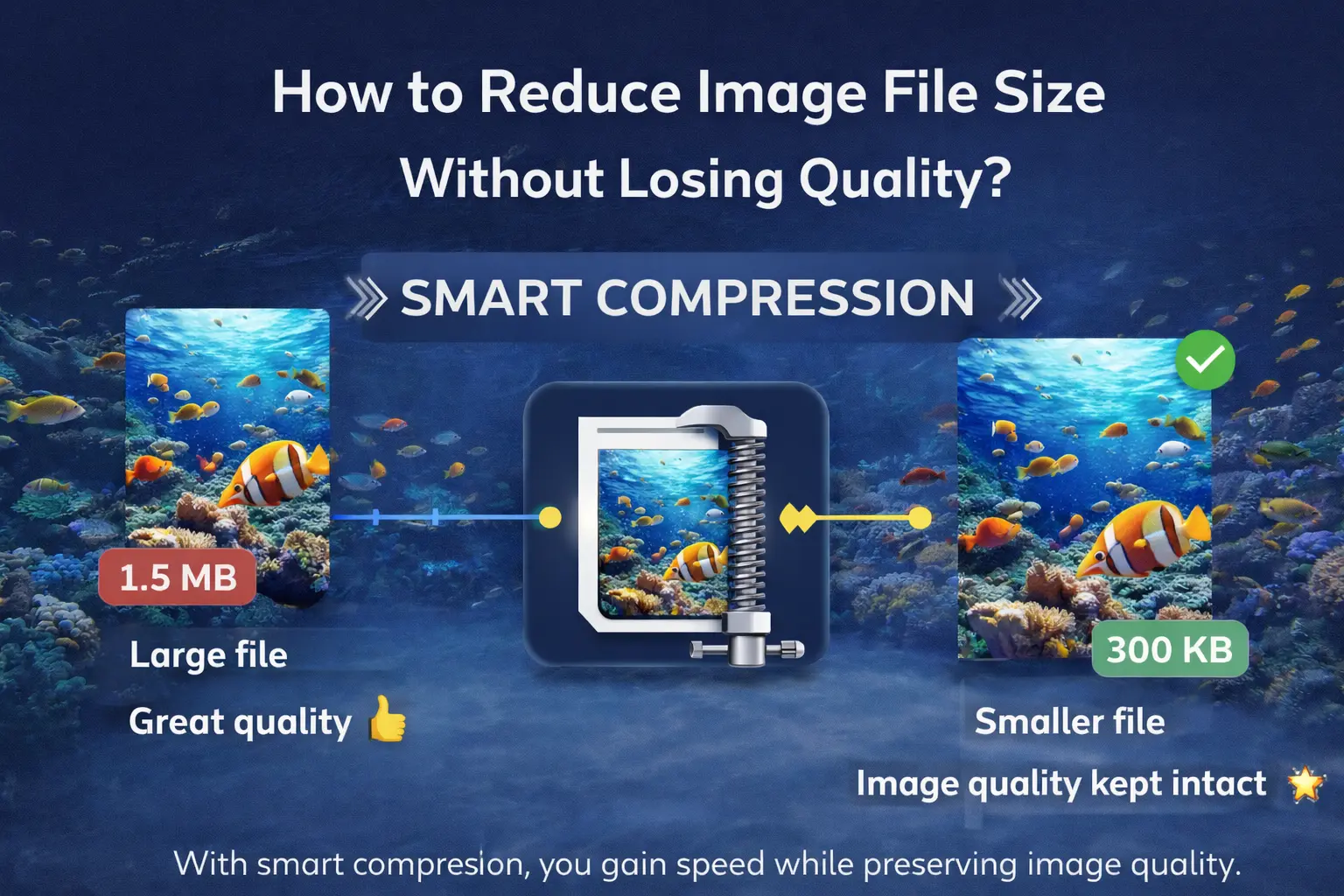
Image compression means reducing file size while keeping quality acceptable. The goal is simple: faster loading pages and better user experience.
2) Methods (JPG / PNG / WebP)
A) JPG compression (photos)
- Lower “quality” reduces size quickly
- Too low can cause blocky artifacts and loss of detail
- Mid-range quality is usually the best balance
B) PNG optimization (logos / UI)
- PNG is lossless; size reduction is more limited
- Removing unnecessary metadata can help
- Works best for images with fewer colors and flat areas
C) WebP optimization (modern web)
- Often smaller than JPG/PNG at similar quality
- Can support transparency
- Great for performance-focused websites
Deeper reads: PNG vs JPG · WebP guide · compress without quality loss.
3) Choosing a target size (KB)
- Hero/cover image: roughly 150–300 KB
- In-article image: roughly 80–200 KB
- Thumbnails: often 20–60 KB
The right target depends on the visible size and level of detail. Very detailed photos need more bytes to look clean. Picking the correct width first often saves more than chasing a lower quality slider.
4) Practical flow in AllImageLab
- Resize to the real layout width if needed.
- Open Compress and lower quality step by step.
- Optionally convert to WebP and rebalance.
- Preview on mobile; if text/edges break, raise quality one step.
5) SEO & performance tips
- Always set width/height to reduce layout shift (CLS)
- Use lazy-loading for below-the-fold images
- Use descriptive file names and real alt text
- Internal links: compress at /comp, convert at /donustur
6) Common mistakes
- Crushing quality on a 4000px image without resizing
- Leaving photos as PNG and inflating megabytes
- Using hero-quality files inside tiny thumbnail slots
- Over-compressing text graphics until they become unreadable
7) FAQ
Can I reduce size with zero quality loss?
Lossless optimization is possible but gains are limited. For big size cuts, controlled lossy compression is usually needed.
Compress first or convert first?
For very large images, resize first, then compress / convert to WebP/AVIF for better control.
What quality should I start with?
Start around JPG 80–85 or WebP 75–80; go lower only if the preview still looks good.
Extra practical notes
Source quality often matters more than the tool. Sharp focus, enough light and a reasonable resolution make every later step easier. Instead of expecting miracles from a weak source, start with a better frame when you can.
Standardize the workflow: edit → inspect → export → verify on the destination. Jumping between related AllImageLab tools reduces tab chaos. Check once more on mobile; a detail that looks clean on desktop can feel different on a phone. Keep a master file and derive channel exports from it — do not go back from a crushed final.
Even a short checklist raises publish quality: is the ratio right, is anything cropped, is file size sensible, is text readable? Ask these four questions on every share.
If the same asset ships to multiple channels, export per channel. Forcing one crop everywhere usually breaks a format. AllImageLab presets and compression make that split quick. Decide with eyes plus file size — “smaller” or “bigger” as slogans are not enough.
Conclusion
Proper compression can dramatically improve website speed. The best strategy is “acceptable quality + realistic target size”. Do it safely in the browser with AllImageLab. Size first, format second, quality third — that order saves most publishes. A tiny A/B also helps: export the same image at two qualities and compare size vs look side by side; the decision usually becomes obvious in seconds.